ROMSearch GUI
ROMSearch features a GUI mode, which can be downloaded from the
GitHub release page. Download the .exe file and place in a
folder of your choice. Note that currently this only works for windows, for Mac and Linux we suggest using the pip
or pipx version within python. After installing via pip/pipx, you can then access the GUI by typing romsearch
into a terminal.
On first run, Windows may complain about the file. Just run anyway, the file is safe.
When opening up the ROMSearch GUI, you will first see a terminal window. Do not close this! It’ll output information as ROMSearch runs, which can be handy to check where things are. The main window will also open up, which will look something like this:
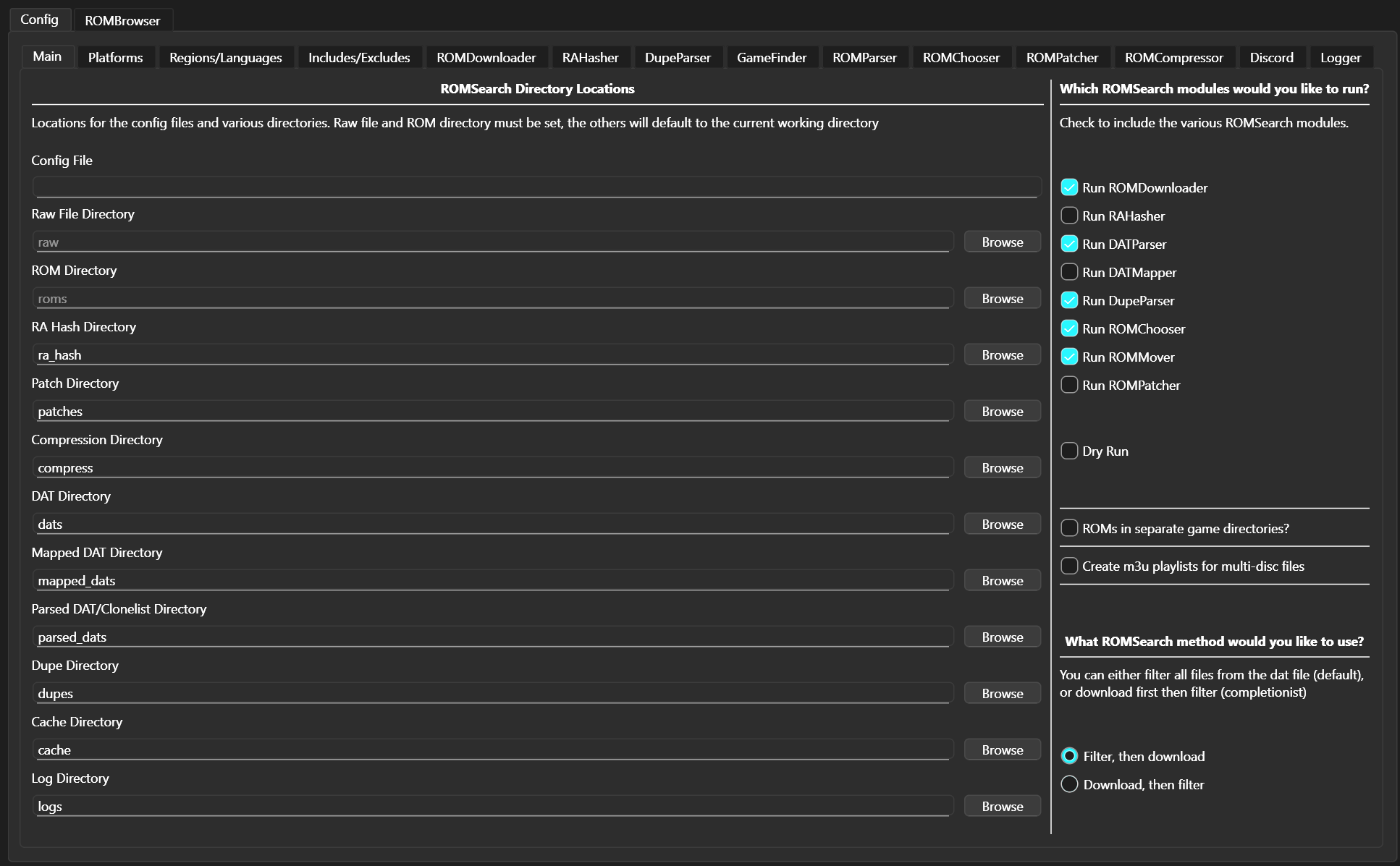
You can exit ROMSearch using the button in the bottom left, or run ROMSearch using the button on the bottom right. By default, it will load in sensible settings but you will need to add in the platforms you care about.
You can also use the ROMBrowser to view useful information about each ROM file, and see how ROMSearch is grouping games up together.
Creating a config file
The first thing you’ll want to do is create a configuration file. You can do this either by going
File->New config file or Ctrl-N. Save with File->Save config file or Ctrl-S
Loading a config file
If you have a pre-existing config file, ROMSearch will load this upon opening. Or, if you have another you’d like to
load you can do so by File->Load config file or Ctrl-O.